Getting Started
Once you receive a link to contribute to a celebrant's page, you'll have access to these features:
- Leave a message as a wish
- Upload a video message
- Give a virtual gift
Click the link to access the celebrant's page and start contributing your wishes, videos, or gifts for their special day.
Note: You'll need to log in or create a free WishFlo account to contribute. The process only takes a few seconds.
Leaving messages
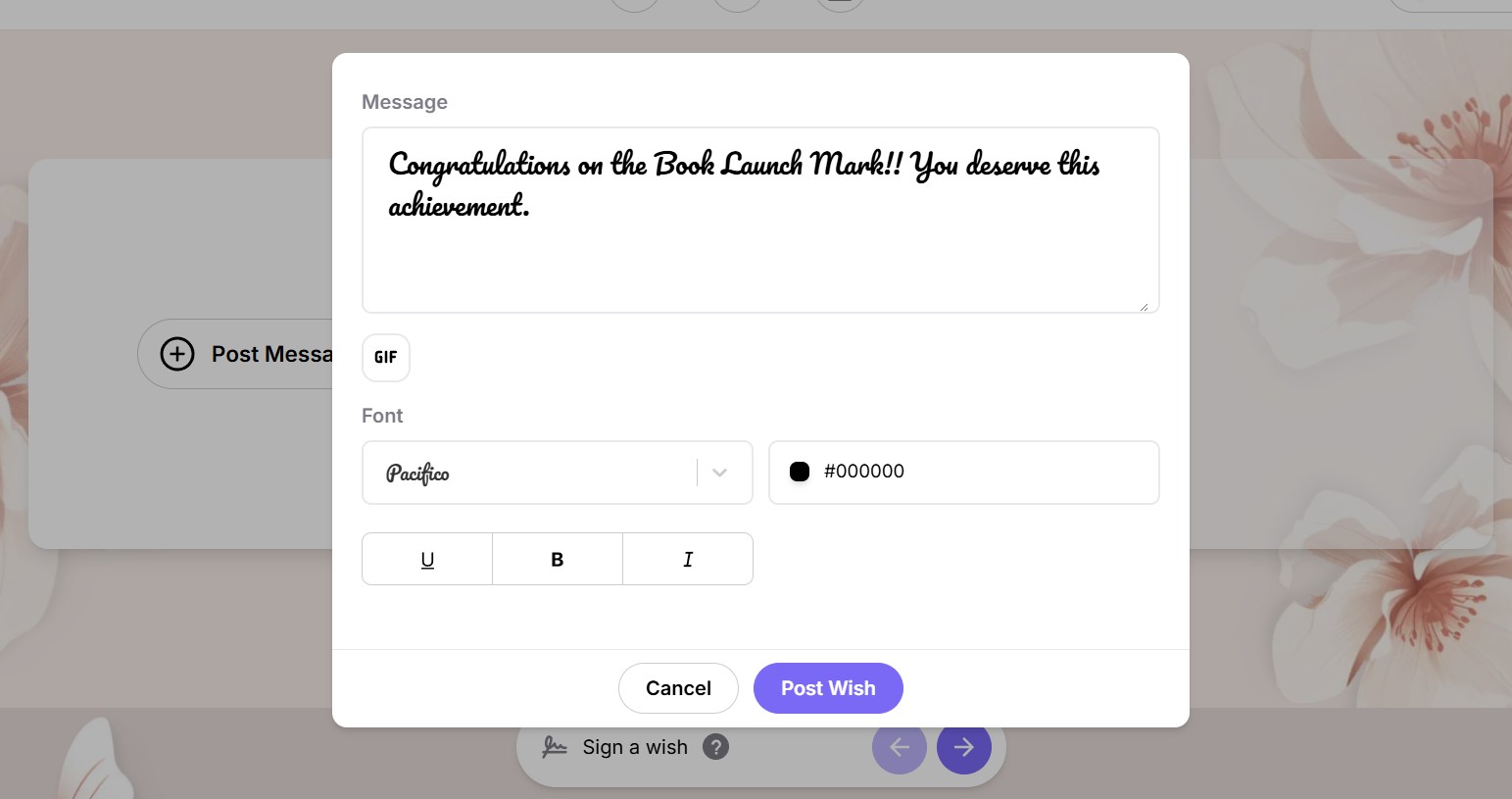
Want to leave a heartfelt message for the celebrant? Here's how to leave a wish on their Wishflo page:
- Write your message: Click on the "Post Message" button on the "Wishes" section of the page. This will open a modal. Express your feelings and wishes in the message box provided. Share a favorite memory, offer words of encouragement, or simply say "Happy Birthday!" You can write up to 300 characters.
- Customize your message: Make it your own! Choose from a variety of fonts and colors — and apply bold, italic, or underline styling — to personalize your wish. Make it even more fun by adding a GIF.
- Post your wish: Once you're happy with your message, click the "Post" button. Your wish will be added to the celebration page, ready to be shared with the celebrant on their special day.
Tips for Writing a Great Wish:
- Be sincere and heartfelt. Let your true feelings shine through in your message.
- Keep it concise and to the point. A short and sweet message is often the most impactful.
- Consider your relationship with the celebrant. Tailor your message to reflect your unique bond.
- Proofread your message before posting. Ensure there are no typos or errors.
A Lasting Keepsake:
Your signed wish will become a cherished part of the celebrant's Wishflo page, a lasting reminder of your love and support on their special day.
Uploading videos
 Lights, Camera, Action!
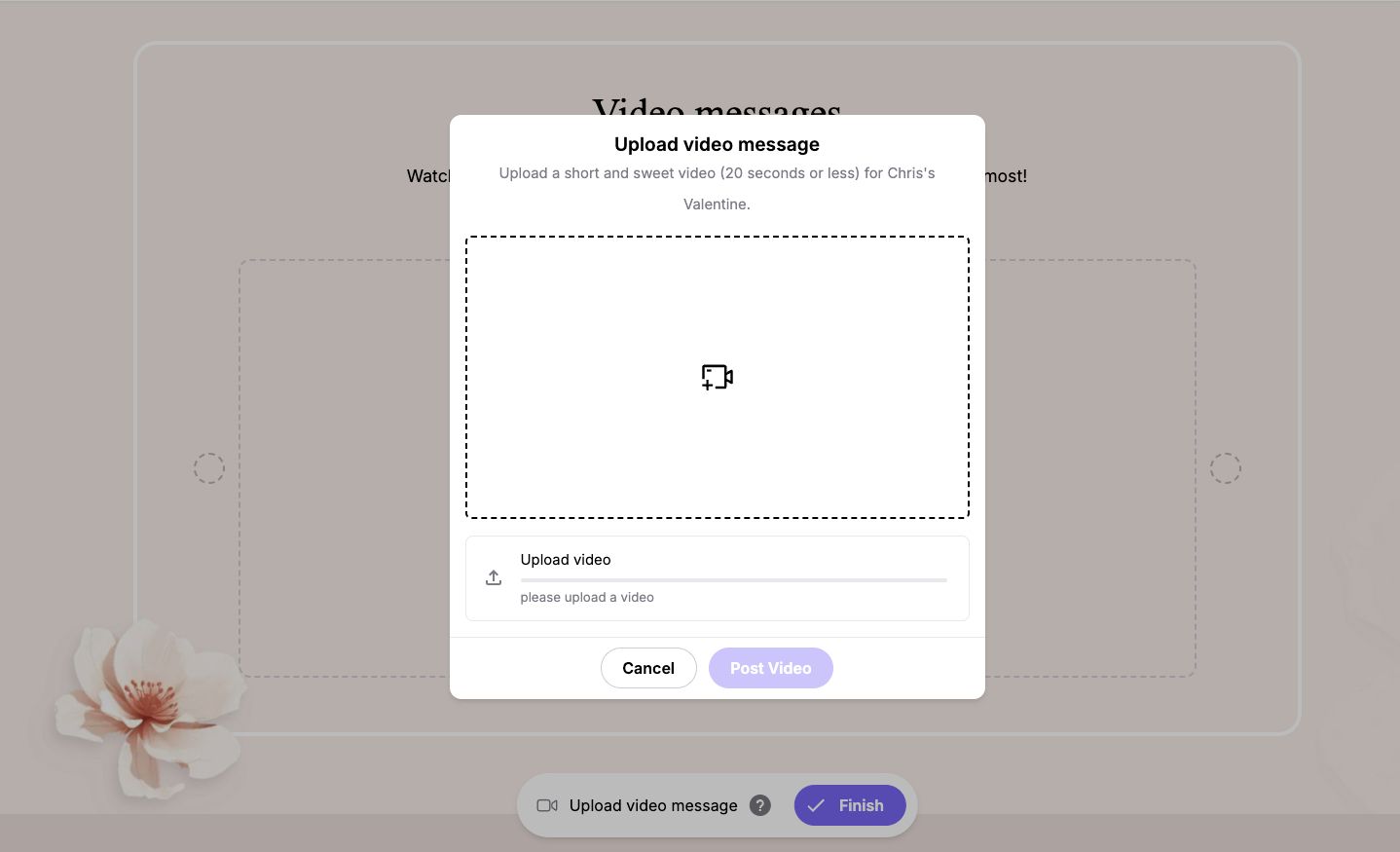
Want to add a personal touch to your wishes? Upload a heartfelt video message for the celebrant! Here's how:
- Prepare your message: Film a short and sweet video message (20 seconds or less) expressing your wishes. You can say something meaningful, share a fun memory, or simply wish them a happy celebration!
- Upload your video: Click the "Upload Video" button in the "Video Messages" section. This will open a modal where you can drag and drop your video file or click the upload icon to select it from your device.
- Preview and Post: Once you've uploaded your video, take a moment to preview it. When you're happy with your message, click the "Post Video" button to share it on the celebration page.
Tips for a Great Video Message:
- Find a well-lit and quiet space. This will ensure your video is clear and your message is easily heard.
- Speak clearly and with enthusiasm. Let your personality shine through!
- Keep your message concise and focused. A short and sweet video is often the most impactful.
- Consider adding a personal touch. Share a funny anecdote, sing "Happy Birthday," or express your sentiments face-to-face.
A Memorable Moment:
Your video message will be a cherished addition to the celebrant's Wishflo page, a lasting memory they can revisit and enjoy for years to come.
Leaving Gifts
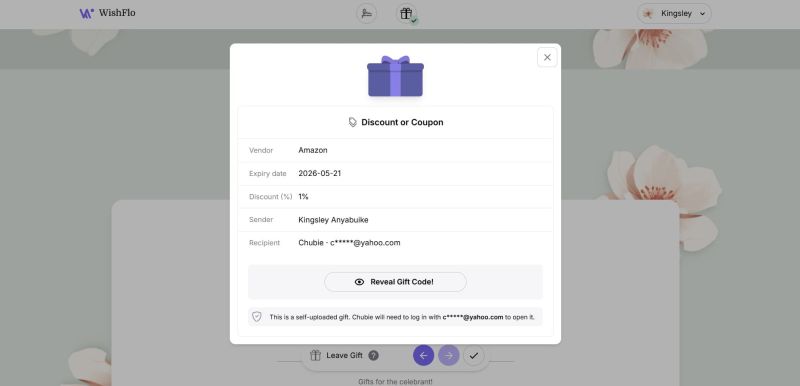
Follow these steps to leave a special gift for the celebrant:
-
Click on "Leave Gift": Start by clicking the "Leave Gift" button on the Gifts section.
-
Pick a Gift Box Design: You can either:
- Choose an Existing Design: Select from one of five pre-designed gift boxes — Blueberry, Lava Flo, Flame, Frost, or Onyx.
- Create Your Own Design: Click "Create Design" to personalize the colors of the box and ribbon to your taste.
-
Upload a Custom Gift: After selecting your design, click the "Upload a Custom Gift" button. This will bring you to a form where you can choose the type of gift:
- Discount or Coupon
- E-ticket
- Gift Card or Voucher
- Subscription
- Online Course
- Donation
- Other
-
Enter Gift Details: Fill out the relevant information for the gift, such as the vendor, amount or discount percentage, and any additional details like expiry dates or instructions.
- If you are uploading a code (e.g., gift card code, voucher code):
- Select "Code" and enter the code in the field provided.
- WishFlo will encrypt the code so that only the recipient can see it.
- If you are uploading a file (e.g., photo, digital ticket):
- Select "File" and upload the file from your device.
- If you are entering a link:
- You can add a URL for gifts like digital subscriptions or online vouchers.
- If you are uploading a code (e.g., gift card code, voucher code):
-
Anonymity (if enabled by the page creator): You may have the option to send your gift anonymously. Check "Send Anonymously" to hide your name and profile from the celebrant.
-
Preview and Confirm: Once you've entered the gift details, click "Proceed" to view a preview of your gift. If everything looks good, you'll see a confirmation page with the option to "Reveal Gift Code!" if applicable.
-
Send the Gift: If you're satisfied with the preview, click "Send this Gift!" The celebrant will receive your thoughtful present on their special day.
Why Give a Virtual Gift? It's a thoughtful gesture. Even a small virtual gift can show the celebrant that you're thinking of them. It's personal and unique. Choose a gift and presentation that reflects your relationship with the celebrant. It's a lasting reminder. The gift will remain on their Wishflo page as a keepsake of their special day.